

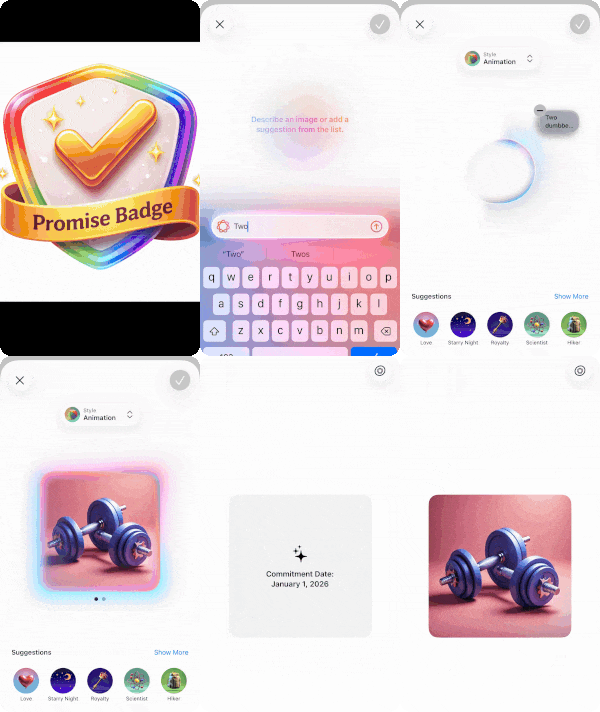
Promise Badge is a small, reflective app that helps you turn a New Year’s resolution into something tangible. Instead of writing a list of goals, you create a single image using Image Playground — an image that represents a promise you’re making to yourself.
The badge remembers the moment you committed. On the front, your visual intention. On the back, the date you chose to begin.
This tutorial isn’t about productivity or tracking progress. It’s about capturing a moment of decision — and learning how to build a polished, Apple-style interaction with SwiftUI and Image Playground along the way:
- Describe an image that reflects your promise or intention for the year ahead.
- When you create your badge, we’ll save the day you committed — so you can always remember where it began.
- Examples for image creation:
- A pair of dumbbells (for your promise to exercise regularly)
- A path through a forest (symbolizing your promise to spend more time in nature)
The app will look like this:
Step 0: Set up your project
- Open Xcode: Launch Xcode and select Create a new Xcode project.
- Choose Template: Select App under the iOS tab and click Next.
- Name Your Project: Enter a name for your project, like
PromiseBadge.- interface: SwiftUI
- language: Swift
Click Next, and then save your project.
When you open your project, you’ll see the already familiar standard code presenting a globe and the Text “Hello, world!” in the ContentView.swift.
Step 1: Preparing for ImagePlayground
To work with Image Playground, we first need to import its framework. Add the following line at the top of your file, just below import SwiftUI:
import ImagePlayground
This gives us access to Image Playground–specific APIs and environment values.
Next, we need to check whether Image Playground is supported, since it’s not available on all devices or OS versions.
SwiftUI provides a convenient environment value for this:
@Environment(\.supportsImagePlayground) var supportsImagePlayground: Bool
supportsImagePlaygroundwill be true if the current device supports Image Playground, and false otherwise.
This allows us to:
- show Image Playground–related UI only when it’s available
- provide a graceful fallback when it’s not
We can do this simply by checking the value of supportsImagePlayground.
Now, replace the default code:
VStack {
	Image(systemName: "globe")
		.imageScale(.large)
		.foregroundStyle(.tint)
	Text("Hello, world!")
}
.padding()
with the following conditional view:
if supportsImagePlayground {
	Text("Image Playground supported.")
} else {
	Text("This device does not support Image Generation features.")
}
At this point, we’re not using Image Playground yet – we’re just making sure our app behaves correctly on devices where the feature isn’t available.
Now that we know Image Playground is supported, we can start building the main UI of our app.
Instead of showing a simple text message, we’ll prepare a placeholder for the image the user will create later. For this, we’ll use AsyncImage, even though we don’t have an image yet.
Why AsyncImage?
- Image Playground returns a file URL.
- AsyncImage is a convenient way to load and display images from a URL.
- It also gives us a built-in placeholder while no image is available.
Replace:
Text("Image Playground supported.")
with the following code:
NavigationStack {
    AsyncImage(url: imageURL) { image in
        image
            .resizable()
            .scaledToFill()
    } placeholder: {
        ContentUnavailableView(
            "No image yet",
            systemImage: "photo",
            description: Text("Tap the Image Playground button to create one.")
        )
        .padding()
    }
    .frame(width: 300, height: 300)
    .clipShape(RoundedRectangle(cornerRadius: 20))
}
NavigationStack sets up navigation for later – we’ll soon add a toolbar button to open Image Playground. AsyncImage tries to load an image from imageURL. Since imageURL is currently nil, the placeholder is shown instead.
ContentUnavailableView gives us a clean, system-styled empty state that explains what the user should do next. The fixed frame and rounded corners already give the image area a badge-like appearance, which we’ll build on later.
At this stage, the app doesn’t generate images yet — but the structure is in place.
We’ve defined where the image will appear and how the app behaves before the first image is created.
In the next step, we’ll add a toolbar button that opens Image Playground and lets the user create their Promise Badge.
Now that our UI has a dedicated “badge area” (the 300×300 image container), we need a way for the user to actually create an image.
A natural place for this action is the top-right corner of the navigation bar:
Add the following toolbar code just before the closing brace of your NavigationStack:
.toolbar {
    ToolbarItem(placement: .topBarTrailing) {
        Button {
            isShowingImagePlayground = true
        } label: {
            Image(systemName: "apple.image.playground")
        }
    }
}
This adds an icon button to the top-right navigation bar. When tapped, it sets isShowingImagePlayground to true.
In the next step, we’ll use this state to present the Image Playground sheet.
Step 2: Creating and Showing an Image with ImagePlayground
Next, we’ll add a few properties at the top of ContentView. These will manage:
- Showing and hiding the Image Playground sheet (
isShowingImagePlayground) - Persisting the generated image so it survives app restarts: Image Playground gives us a temporary file URL. We want to move the selected image into a stable, predictable location inside our app’s Documents folder. By always saving it under the same filename (
last-image.png), we can easily load it again when the app launches. - Using
imageReloadIDto forceAsyncImageto refresh when we overwrite the file with a new image. When we overwrite a file at the same URL,AsyncImagemay still show the old cached image. Changing.id(imageReloadID)forces SwiftUI to rebuild theAsyncImageview, ensuring the newest image appears immediately. - Saving the “commitment date” (the moment the badge was created): We’ll save the date the badge was created in
UserDefaults, usingcommitmentDateKey. Later, we’ll show this date on the back side of the badge when the user flips it.
Add these properties to ContentView:
@State private var isShowingImagePlayground = false

private var persistedImageURL: URL {
    URL.documentsDirectory.appending(path: "last-image.png")
}

@State private var imageReloadID = UUID()

private let commitmentDateKey = "imageCommitmentDate"
@State private var commitmentDate: Date?
private var formattedCommitmentDate: String {
    guard let commitmentDate else { return "—" }
    return commitmentDate.formatted(date: .long, time: .omitted)
}
First, we are applying imageReloadID:
Update your AsyncImage view by adding the following modifier:
.id(imageReloadID)
Even though we always save the image to the same file URL (last-image.png), the actual image content changes when the user generates a new badge.
However, SwiftUI’s AsyncImage may cache content based on the URL.
If the URL stays the same, SwiftUI might assume nothing changed — and continue showing the old image. By adding this .id(imageReloadID) modifier, we give the view a new identity whenever imageReloadID changes.
Next, we’ll connect everything by presenting the Image Playground sheet, saving the generated image, and storing the commitment date when the user selects a result.
Step 3: Present Image Playground and Persist the Result
The final piece is presenting Image Playground as a sheet and handling the result when the user finishes creating an image.
Add the following code just after the closing brace of your NavigationStack:
.imagePlaygroundSheet(isPresented: $isShowingImagePlayground) { url in
    do {
        if FileManager.default.fileExists(atPath: persistedImageURL.path()) {
            try FileManager.default.removeItem(at: persistedImageURL)
        }
        try FileManager.default.moveItem(at: url, to: persistedImageURL)

        imageURL = persistedImageURL
        imageReloadID = UUID()

        let now = Date()
        commitmentDate = now
        UserDefaults.standard.set(now, forKey: commitmentDateKey)
    } catch {
        print("Saving image failed:", error)
    }
}
The .imagePlaygroundSheet() modifier presents the Image Playground as a sheet whenever isShowingImagePlayground becomes true. Tapping the toolbar button triggers exactly that.
When the user creates an image in Image Playground, we receive a temporary file URL pointing to the generated image. This file is not meant to be used directly — it may disappear once the sheet is dismissed. Therefore, we move the generated image into our app’s Documents directory under a known filename (last-image.png) by using:
try FileManager.default.moveItem(at: url, to: persistedImageURL)
Before doing that, we remove any existing file at that location:
if FileManager.default.fileExists(atPath: persistedImageURL.path()) {
    try FileManager.default.removeItem(at: persistedImageURL)
}
This ensures we always have exactly one current Promise Badge image.
To immediately update the UI, we refresh the view by:
imageURL = persistedImageURL
imageReloadID = UUID()
imageURL tells AsyncImage where to load the image from, and imageReloadID forces SwiftUI to refresh the view even though the URL stays the same. This guarantees the newly generated image appears right away.
We are then saving the commitment date:
let now = Date()
commitmentDate = now
UserDefaults.standard.set(now, forKey: commitmentDateKey)
This is now a good time, to run your app. And you will see, you can tap the Image Playground button, generate an image, and see it appear as a Promise Badge in the app. So far, everything works as expected.
However, try this next:
- Close the app completely
- Launch it again
You’ll notice, the badge is gone. Even though we saved the image file and the commitment date, the UI starts empty again.
Why does this happen?
In SwiftUI, @State properties do not persist across app launches.
That means values like:
@State private var imageURL: URL?
@State private var commitmentDate: Date?
are reset to nil every time the app starts – even if:
- the image file still exists in the app’s Documents directory
- the commitment date is still stored in UserDefaults
In other words, the data is there — but SwiftUI doesn’t automatically restore it into our view state. We need to do that ourselves.
To fix this, we’ll load the saved image and commitment date as soon as the view becomes active.
Add the following .task modifier directly after the .toolbar modifier:
.task {
if FileManager.default.fileExists(atPath: persistedImageURL.path()) {
imageURL = persistedImageURL
imageReloadID = UUID()
commitmentDate = UserDefaults.standard.object(forKey: commitmentDateKey) as? Date
}
}
What this code does:
- Checks if a Promise Badge already exists: If the saved image file is present, the user has created a badge before.
- Restores the badge image: By setting
imageURL,AsyncImagecan immediately load the saved image. - Forces a clean UI refresh: Updating
imageReloadIDensures SwiftUI doesn’t reuse a stale image view. - Restores the commitment date: The saved date is loaded from
UserDefaultsand placed back into SwiftUI state.
Run the app again.
Now, when you close and reopen it, the Promise Badge and its commitment date are restored automatically – just as you’d expect from a real app.
At this point, our Promise Badge isn’t just generated – it’s remembered.
So far, our Promise Badge shows the generated image on the screen – but we also saved something just as important: the commitment date.
To make this information feel meaningful (and not just like another label), we’ll present it on the back side of the badge, similar to how Apple Fitness+ badges reveal additional details when flipped.
To get there step by step, we’ll start with a very simple flip interaction.
Step 4: Create a reusable InteractiveFlipCard
Create a new SwiftUI file, name it InteractiveFlipCard.swift.
We want InteractiveFlipCard to be a generic view that accepts two views:
– a front view
– a back view
Instead of hard-coding specific views, we let the caller decide what goes on the front and the back to make the behaviour reusable.
The generic type parameter are defined by:
<Front: View, Back: View>
It means that Front and Back are placeholder that must conform to View.
Using generics gives us three big advantages:
- Reusability: InteractiveFlipCard can be reused anywhere:
- images
- Text
- onboarding tips etc
- Clean separation of concerns: The flip card:
- handles interaction and layout
- does not care about content
The content lives entirely inContentViewand can evolve independently. This keeps the code clean and maintainable.
- Generics let us say: “This view wraps other views and adds behaviour.”
To define the behaviour of the views, we define to constants, one for the front view (front), and one for the back view (back). We want to show one of the views depending on if the user tapped the card. Therefore we define a @State variable isFlipped that keeps track of the tapping being toggled if the card has been tapped:
.onTapGesture {
	isFlipped.toggle()
}
In total, our InteractiveFlipCard looks the following:
import SwiftUI
struct InteractiveFlipCard<Front: View, Back: View>: View {
let front: Front
let back: Back
@State private var isFlipped = true
var body: some View {
ZStack {
if isFlipped {
front
} else {
back
}
}
.onTapGesture {
	isFlipped.toggle()
}
}
}
Step 5: Wrap the badge content in our InteractiveFlipCard
Next, we’ll use this new container in ContentView.
Wrap the AsyncImage into our new InteractiveFlipCard, keeping the AsyncImageas the front and defining a new back side which shows the commitment date. So the InteractiveFlipCard in ContextView looks the following:
InteractiveFlipCard(
	front:
		AsyncImage(url: imageURL) { image **in**
			image
				.resizable()
				.scaledToFill()
		} placeholder: {
			ContentUnavailableView(
				"No image yet",
				systemImage: "photo",
				description: Text("Tap the Image Playground button to create one.")
			)
			.padding()
		}
		.frame(width: 300, height: 300)
		.clipShape(RoundedRectangle(cornerRadius: 20)),
	back:
		RoundedRectangle(cornerRadius: 20)
			.fill(.ultraThinMaterial)
			.overlay {
				VStack(spacing: 12) {
					Image(systemName: "sparkles")
						.font(.largeTitle)
					Text("Commitment Date:\n\(formattedCommitmentDate)")
						.font(.headline)
						.multilineTextAlignment(.center)
				}
				.padding()
			}
			.frame(width: 300, height: 300)
			.clipShape(RoundedRectangle(cornerRadius: 20))
)
.id(imageReloadID)
.frame(width: 300, height: 300)
Time for another test – run the app and you will see that after you created your image and tap the image, a backside appears that contains the current date as your commitment date.
While this is working, the animation with the tap is pretty basic. Let’s make it more fun by creating an Apple Fitness+ like style where you can turn the badge smoothly left and right.
The good news: we don’t need to change anything in ContentView since the logic how the card moves lives entirely inside InteractiveFlipCard.
Step 6: Creating an Apple Fitness+ like Rotation
Instead of a boolean (isFlipped) that keeps track of one side or the other, we want a continuous rotation.
Please remove the isFlipped property and add:
@State private var committedRotation: Double = 0
This stores the “resting” rotation of the badge — the rotation it snaps to after a gesture ends. committedRotation determines whether the front or the back is shown — and it does so via multiples of 180°.
We also add:
@State private var wiggleAngle: Double = 0
This is a small temporary offset used for a little “snap and wiggle” animation after committing a flip. This is a temporary, animated offset added after a flip is committed. It exists purely to:
- overshoot slightly
- bounce back
- settle into place.
WithoutwiggleAngle, the snap would feel stiff and mechanical.
So instead of “front vs back”, we now think in angles:
- front: around 0°
- back: around 180°
- and we can go beyond (360°, 540°, …) for infinite rotation.
Next, we need to track the user’s drag gesture. We need the current drag value while the user is dragging — but we don’t want to permanently store it.
That’s what @GestureState is for:
@GestureState private var dragX: CGFloat = 0
@GestureState automatically resets when the gesture ends, which is perfect for “live interaction” input.
Drag distance only makes sense relative to the size of the card. A 50px drag on a small badge feels very different than on a large one.
So we wrap the ZStack in:
GeometryReader { proxy in
    let width = max(proxy.size.width, 1)
    ...
}
Now we can normalize any drag:
let dragProgress = dragX / width
This gives us a proportional value like:
- -0.2 (dragged left 20% of width)
- +0.35 (dragged right 35% of width)
Next, we need to convert the drag distance into degrees. To get that “turning badge” feel, we map horizontal drag to rotation:
let dragRotation = Double(dragProgress) * 180
This means:
- dragging one full badge width ≈ 180°
- half width ≈ 90°
- small drags turn it slightly
This is pure interaction driven directly by the user’s finger, it changes continuously while dragging and disappears when the gesture ends. It gives us a smooth, real-time turning, the feeling that the badge is “attached” to the finger. We do not store this permanently – it’s only meaningful during the gesture.
Now we compute the actual rotation that should be displayed right now:
let rotation = committedRotation + dragRotation + wiggleAngle
where
- committedRotation = the stable resting angle
- dragRotation = live user input
- wiggleAngle = bounce effect after snapping
Now, we need to decide whether to show front or back based on the angle. Once we rotate past 90°, we should show the backside.
To do that robustly—even across multiple spins—we normalise the angle:
let normalized = abs(rotation.truncatingRemainder(dividingBy: 360))
This means, we got now:
- near 0° (or 360°): front
- near 180°: back
That means, we can replace our ZStack now with the following:
ZStack {
    if normalized < 90 || normalized > 270 {
        front
    } else {
        back
            .rotation3DEffect(.degrees(-180), axis: (x: 0, y: 1, z: 0))
    }
}
That extra -180 on the back is important: without it, the back text would appear mirrored while rotated.
Now we can apply the 3D rotation to the whole card (i.e. after the closing bracket of the ZStack):
.rotation3DEffect(
    .degrees(rotation),
    axis: (x: 0, y: 1, z: 0),
    perspective: perspective
)
To ensure the drag gesture works even if the view contains empty areas, we add:
.contentShape(Rectangle())
Then we attach a Drag-Gesture:
.updating($dragX)continuously updatesdragXwhile dragging.onEndeddecides whether the flip should commit or snap back
To attach a Drag-Gesture, we are using the following:
.gesture {
	DragGesture(minimumDistance: 6)
    .updating($dragX) { value, state, _ in
        state = value.translation.width
    }
    .onEnded { value in
        ...
    }
}
This defines one continuous gesture with three distinct phases:
- when it starts,
- while it’s changing,
- when it ends.
Let’s get started:
Firstly, DragGesture(minimumDistance: 6) creates a drag gesture that only begins after the user has moved their finger at least 6 points. This prevents accidental drags from tiny movements and allows taps to still feel like taps (important for mixed interactions). It also makes the badge feel more deliberate and “physical”.
Secondly, the live update of the phase is done by
.updating($dragX) { value, state, _ in
	state = value.translation.width
}
Here, value is a DragGesture.Value, which contains:
translation.width→ horizontal movementtranslation.height→ vertical movementlocation→ current touch locationstartLocation→ where the drag began
In our case, we only care about horizontal movement:
value.translation.width
state represents the current value of dragX and therefore we assign the horizontal movement to state.
Thirdly, the .onEnded block runs once, when the user lifts their finger.
Here we decide:
- whether the drag was strong enough to commit a flip
- or whether the badge should snap back to its original position.
We need to define a threshold to the next side if the user dragged far enough. Therefore define a new property:
var commitThreshold = 0.35
In .onEnded we define:
let endProgress = value.translation.width / width
let shouldCommit = abs(endProgress) >= commitThreshold
If shouldCommit is true, we commit to a new resting position by adding ±180° and we trigger the wiggle animation:
if shouldCommit {
    committedRotation += (endProgress < 0 ? 180 : -180)
    Task { @MainActor in
        await snapWithWiggle(direction: endProgress < 0 ? -1 : 1)
    }
}
If shouldCommit is false, we reset the wiggle angle to 0, and the badge snaps back to where it was:
else {
	withAnimation(.spring(response: 0.55, dampingFraction: 0.82)) {
		wiggleAngle = 0
	}
}
The last finishing touch is to add the “Apple-style” snap + wiggle. Instead of a simple snap, we overshoot and settle. We need to create a function snapWithWiggle)that updates the wiggleAngle(a SwiftUI state) and triggers animations. Since all UI updates must happen on the main thread, we mark the function explicitly with @MainActor:
@MainActor
private func snapWithWiggle(direction: Int) async {

}
We want to animate (overshoot), wait a little (~120 ms), animate again in opposite direction, wait again a little and then settle, i.e. wiggleAngle = 0.
We start with the overshoot. Inside snapWithWiggleinsert:
withAnimation(.spring(response: 0.55, dampingFraction: 0.70)) {
	wiggleAngle = Double(direction) * 10
}
This moves the badge slightly past its final position. direction ensures the overshoot goes the same way as the flip. With a lower damping fraction, we create more bounce. This mimics inertia: real objects rarely stop exactly on target.
Next, the “pull back”. After a short delay (~120 ms), the badge pulls back in the opposite direction with a faster response, less damping. This creates the characteristic left-right wiggle.
For the short delay, we are ssing Swift Concurrency (Task.sleep), that gives us:
- clean sequencing
- no nested callbacks
- readable intent
try? await Task.sleep(nanoseconds: 120_000_000)
withAnimation(.spring(response: 0.35, dampingFraction: 0.55)) {
	wiggleAngle = Double(direction) * -6
}
Finally, coming to rest: We reset the offset to zero, set the damping higher to create a smoother stop and no more oscillation:
try? await Task.sleep(nanoseconds: 100_000_000)
withAnimation(.spring(response: 0.35, dampingFraction: 0.75)) {
	wiggleAngle = 0
}
This is the moment where the badge feels done.
With the snap-and-wiggle animation in place, our Promise Badge now behaves much like an Apple Fitness+ badge:
- it turns smoothly as you drag left and right
- it commits only when you pass a clear threshold
- and when it does, it snaps into place with a subtle overshoot and settle
That small wiggle is more than just decoration — it gives the badge a sense of weight and physicality. It feels like an object, not just a view.
At this point, the experience comes together:
- The front shows your visual promise
- The back reveals the date you committed
- The badge remembers both across app launches
Run your app and experiment with the Image Playground and the badge behaviour.
Congratulations!
You’ve just built an app that features Image Playground! 🎉
What you have learned
In this code-along, you didn’t just integrate Image Playground — you combined several important SwiftUI concepts into one cohesive experience. You’ve learned how to:
- Checking feature availability with
@Environment - Presenting Image Playground as a sheet
- Persisting files and metadata across app launches
- Designing reusable views with generics
- Building interactive gestures with
DragGesture - Creating physical-feeling motion using 3D transforms and springs
Last but not least, you learned how small, thoughtful details – like a snap, a wiggle, or a saved date – can turn a simple feature into something meaningful.
That’s a big accomplishment in a single code-along — very well done! 🎉
That’s a wrap!
Keep learning, keep building, and let your curiosity guide you.
Happy coding! ✨
Don’t be afraid to fail. Be afraid not to try it. – Michael Jordan
Download the full project on GitHub: https://github.com/swiftandcurious/PromiseBadge